Using the browser’s native login prompt
These days, every web site has its own unique “login” screen, along with its own separate system for remembering your login name and password. How many millions of developer-hours are spent designing and implementing these screens? And yet, every web browser has a built-in standard login prompt ready for you to use. For example:
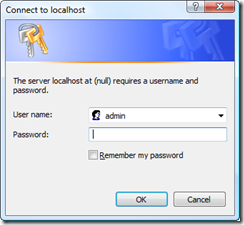
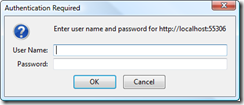
These have been standard in web browsers since since 1558 AD, when the legendary Duke of Login first invented the idea of logging in. Respect!
Most web developers who want to do programmatic authentication (i.e., validating credentials against Forms Authentication or directly against a database) don’t use this native browser login prompt, for two reasons:
- It’s not clear how to make it work with programmatic authentication
- It’s believed to be insecure (for some reason)
First, I’ll show how to use the native login prompt programmatically with ASP.NET MVC, then we’ll talk about security.
A Quick Overview of the HTTP Basic Authentication Protocol
So, how does the native login prompt actually work? What makes it appear, and what data does it send from the browser to the server?
- The browser makes a request to some URL
- The server sends back a response with an HTTP status code of 401 (meaning “Not authorized”), plus a header describing the types of authentication it will accept. For example:
WWW-Authenticate: Basic - This makes the browser display a login prompt, but it doesn’t display any other text that’s in the response. (It only displays that response text if the user clicks “Cancel”.)
- When the user enters some credentials, the browser resubmits the same request to the same URL, plus it also adds this extra header:
Authorization: Basic username:password
Note that the username:password bit is actually Base-64 encoded. - The server parses the username and password from the request, and decides whether the credentials are valid or not. If they are valid, it lets the user continue (so it might return a proper HTML response, or it might redirect to somewhere else). If they are invalid, it returns a 401 again (i.e., goes back to step 2).
- If the user enters the same incorrect credentials twice in a row, the browser normally won’t bother resubmitting them and will just give up.
Using HTTP Basic Authentication programmatically in ASP.NET MVC
Now you know how HTTP Basic authentication works, it’s easy to use it from ASP.NET MVC. Just follow the above script, playing the role of the server.
Let’s say you want to combine Forms Authentication with a browser-native login prompt. Start by setting up Forms Authentication, i.e., put into your web.config file:
<authentication mode="Forms">
  <forms loginUrl="~/Account/Login" defaultUrl="~/">
    <credentials passwordFormat="SHA1">
      <user name="admin" password="e9fe51f94eadabf54dbf2fbbd57188b9abee436e" />
    </credentials>
  </forms>
</authentication>
Note that e9fe51… is the SHA1 hash of “mysecret”, so this configuration has a single hard-coded login name, “admin”, with password “mysecret”. In a more realistic app you’d probably not have any
Now, assuming you’ve decorated some controller or action method with [Authorize], when the user visits that controller or action, they’ll be redirected to ~/Account/Login. To handle that request, create a new controller class called AccountController, as follows. You can replace the default implementation of AccountController if you have one.
public class AccountController : Controller
{
    public void Login()
    {
        // Ensure there's a return URL
        if (Request.QueryString["ReturnUrl"] == null)
            Response.Redirect(FormsAuthentication.LoginUrl + "?ReturnUrl=" + Server.UrlEncode(FormsAuthentication.DefaultUrl));

        if (TempData.ContainsKey("allowLogin"))
        {
            // See if they've supplied credentials
            string authHeader = Request.Headers["Authorization"];
            if ((authHeader != null) && (authHeader.StartsWith("Basic")))
            {
                // Parse username and password out of the HTTP headers
                authHeader = authHeader.Substring("Basic".Length).Trim();
                byte[] authHeaderBytes = Convert.FromBase64String(authHeader);
                authHeader = Encoding.UTF7.GetString(authHeaderBytes);
                string userName = authHeader.Split(':')[];
                string password = authHeader.Split(':')[1];

                // Validate login attempt
                if (FormsAuthentication.Authenticate(userName, password))
                {
                    FormsAuthentication.RedirectFromLoginPage(userName, false);
                    return;
                }
            }
        }

        // Force the browser to pop up the login prompt
        Response.StatusCode = 401;
        Response.AppendHeader("WWW-Authenticate", "Basic");
        TempData["allowLogin"] = true;

        // This gets shown if they click "Cancel" to the login prompt
        Response.Write("You must log in to access this URL.");
    }
}
(By the way, I’m fully aware that the Login() action eschews a number of ASP.NET MVC best practices – it doesn’t return a useful ActionResult, and it calls Response.Redirect() directly. This makes it unsuitable for unit testing. I did this because fundamentally it’s using the static and hard-to-test FormsAuthentication API anyway. You can wrap all the static method calls inside an interface and use constructor injection, and perhaps return some special HttpBasicActionResult, if you want to make it testable – but I didn’t want to distract from the real point of this example.)
That does it! Now when a visitor goes to anything protected with [Authorize], they’ll get a browser-native login prompt, such as the one shown below. If the visitor enters valid credentials (i.e., admin/mysecret), then they’ll be given a Forms Authentication cookie, and will be redirected back to the action method they requested.
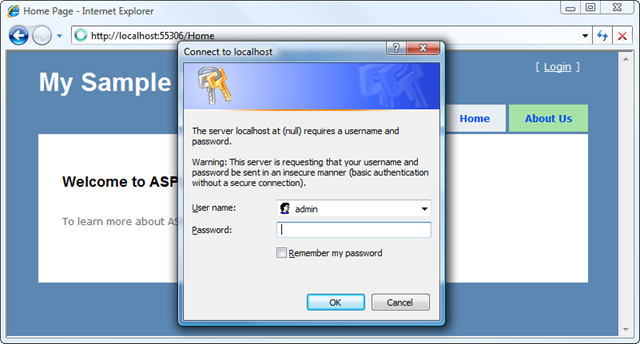
Notice in this screenshot that IE gives a warning about “basic authentication without a secure connection“. We’ll talk about secure connections (SSL) in a moment.
Next, you’ll want to give visitors some way of logging out. This has nothing to do with HTTP basic authentication; it’s just a matter of revoking the visitor’s Forms Authentication cookie. So, add this to AccountController:
public RedirectResult Logout()
{
    FormsAuthentication.SignOut();
    return Redirect(FormsAuthentication.DefaultUrl);
}
What a very simple way of getting a nice login UI.
Is this secure?
HTTP Basic authentication has an undeserved reputation for being insecure. Yes, it does send credentials over the wire in plain text (well, Base-64 encoded, but that’s basically the same). But then if you make a custom login form (such as the one in the default ASP.NET MVC project template), that sends credentials in plain text too. The level of security is identical.
Either way, you must protect the transmission by doing it over SSL. And that’s just as easy, or difficult, whether you use the browser’s native login prompt or create your own custom login screen.
One quirk of HTTP basic authentication is that the browser keeps on sending the Authorization header with every request that appears to be in the same folder as the one where it was originally requested. So, in this example, the browser will keep sending the Authorization header with every request to AccountController (but not to other controllers). That means you shouldn’t let the browser perform any requests to AccountController that aren’t wrapped in SSL. Also, HTTP basic authentication doesn’t give any natural way to log out, which is why I added the TempData[“allowLogin”] test so that you always get a login prompt the first time you go to Login(). When a visitor clicks “log out”, it does erase their Forms Authentication cookie, but the browser still has the credentials in its HTTP Basic cache. The user acts as logged out, but the credentials are still in the browser’s memory until they close the browser.
Conclusion
Using ASP.NET MVC, it’s easy to make a browser pop open its native login prompt, and to parse out the credentials that a user enters. These login credentials are no more or less secure than credentials entered into a normal custom login form.
However, it’s also easy to create a custom login form. This gives you more control over its appearance, and avoids the quirks of HTTP basic authentication with regard to logging out. Therefore, for most applications, it’s usually best still to create a custom login form.
This article was expanded from a short example that I was originally going to put in my forthcoming ASP.NET MVC book, but I decided to remove it from the book because it isn’t quite worthy enough…